
Guides / Connect Bluetooth
Connect a Bluetooth speaker
Switch the speaker on, then click its dimmed jack at the end of Outputs. Switchboard connects it and makes it your output in one action. It takes about six seconds.
A Bluetooth audio device you've paired but aren't connected to gets a dimmed jack at the end of Outputs, with a Bluetooth mark in its corner.
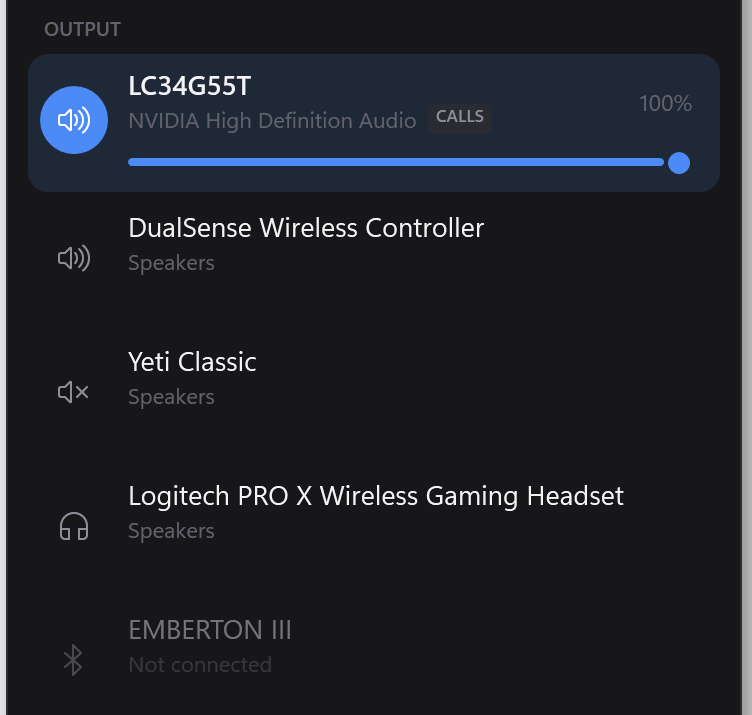
Click it and two things happen in sequence: the speaker connects, then — once Windows has actually created an audio device for it — Switchboard switches your output to it. The jack brightens and its corner shows a busy mark while it works.
That's the whole point of the feature. Normally this is: open Settings, find Bluetooth, click Connect, wait, close Settings, open the volume flyout, pick the speaker. Here it's one click in one place.
It can't switch the speaker on for you
The speaker has to be powered on. Bluetooth has no way to wake a device that's switched off — a powered-down speaker isn't listening for anything. If you click the jack and nothing happens, that's almost always why.
You'll know quickly, because the two cases feel completely different:
- Speaker on: about six seconds, then it connects.
- Speaker off: instant failure, and the message says "…isn't responding — switch it on and try again."
What the jack does save you is the case where the speaker is on but connected to your phone, or idle and dropped off the PC — which is most of the time.
Why six seconds
That's Bluetooth, not Switchboard. The Windows API for connecting a device blocks until it finishes and offers no faster route. Measured against a real speaker it's consistently about six seconds to connect and six to disconnect.
The work happens in the background, so the window stays responsive — you can carry on using it while a speaker wakes up.
Disconnecting
Click the pencil at the top of the flyout: every connected Bluetooth device's jack gets an unlink button. Click it to disconnect — useful for handing the speaker back to your phone.
Why it's in the output list and not its own section
Because "turn the speaker on" and "send sound to the speaker" are the same intention, and splitting them into two sections would recreate the Settings-then-volume-flyout dance this exists to delete. The jack is where you'd look for the speaker anyway.
Pairing a new device
Switchboard doesn't pair — it works with devices Windows already knows. Pair a new one the usual way (Settings → Bluetooth & devices → Add device), and it'll appear here from then on.