Guides / Discord on the wrong device
Discord still plays through the wrong device after you switch
Windows keeps a separate default device for calls, and its Sound panel doesn't move it. Set Discord's output to "Default" and switch with a tool that moves the calls default too — or change it by hand in the classic Sound control panel.
The symptom: you switch to your headset, the game moves, and your friends' voices keep coming out of the speakers. Or the other way round. It isn't Discord being broken.
Why it happens
Windows doesn't have one default audio device. It has three — Console, Multimedia and Communications — and voice apps like Discord, Teams, Zoom and in-game chat follow Communications. The Sound panel's Set as Default moves the first two and leaves Communications where it was. So the game follows you, and the call doesn't.
Fix 1: check Discord itself
- In Discord, open User Settings → Voice & Video.
- Set Output Device and Input Device to Default.
If either names a specific device — "Logitech PRO X", say — Discord will use that device no matter what Windows does, and nothing below will move it. Teams and Zoom have the same setting under their audio options.
Fix 2: move the calls default too
By hand, in Windows:
- Press Win+R, type
mmsys.cpl, press Enter. - Right-click your headset and choose Set as Default Communication Device.
- Do the same on the Recording tab for the microphone.
That works, but you have to do it every time you switch — which is exactly what nobody remembers to do.
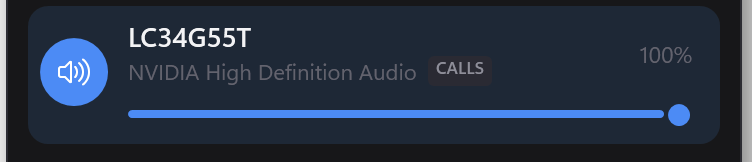
With Switchboard: click the device in the flyout. It sets all three defaults at once, every time, so the game and the call always move together.
If you want them on different devices
Sometimes the split is the point — the game on the speakers, Discord in the headset. That's what per-app routing is for: pin Discord to the headset and it stays there whatever the default is.