Guides / Preferred devices
Switch to your headphones automatically when they connect
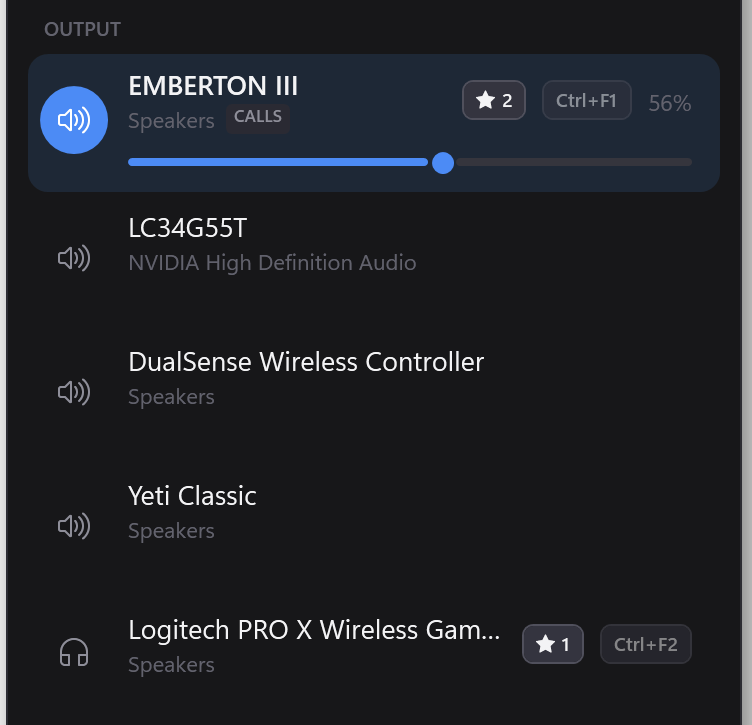
Hover your headset's card in the flyout and click the star. From then on, plugging it in or switching it on makes it the default, and taking it off sends the sound to your next starred device.
Windows has no setting for this. Sometimes it switches to a headset you've just connected, sometimes it doesn't, and when you unplug it the sound goes wherever Windows decides — often the monitor speakers you never use. Starring a device tells Switchboard what you actually want.
Setting it up
- Click the tray icon to open the flyout.
- Hover the device you want most — usually your headset — and click the ☆ on its card. It becomes ★1.
- Star your fallback next — the desk speakers, say. It becomes ★2.
Starred devices keep their star visible, so you can always see which ones will take over. Microphones work the same way, separately from outputs.
What happens, exactly
- A starred device connects and it ranks above what's playing now → Switchboard switches to it. An unstarred device counts as ranking below every star.
- The device you're using disappears — unplugged, switched off, out of range → Switchboard switches to your best starred device that's still there.
- Either way, a small notice at the bottom of the screen says where the sound went, so a switch you didn't press a key for never goes unexplained.
It never overrules you
Switchboard only acts when a device arrives or leaves. If your headset is plugged in and you click the speakers by hand, the speakers stay — it won't snap you back to ★1. A rule that kept forcing the "best" device would make every manual click pointless.
Changing the order
The order is the order you starred them in. To move a device to the back, click its star to remove it and click again to re-add it. With the two or three devices most people star, that's all the control the list needs.
Bluetooth headphones
A starred Bluetooth headset switches over as soon as Windows has it connected — turning it on is enough, as long as it reconnects to your PC by itself. If it's connected to your phone instead, click its card to connect it.
Where it's stored
%APPDATA%\Switchboard\preferred.json, as a list of device ids. Uninstalling
leaves it alone.