
Guides / Automatic profiles
Change your audio device automatically when a game starts
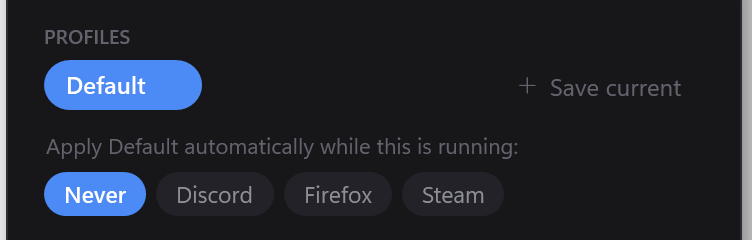
Save your gaming setup as a profile, then hover its pill and click the link icon and pick the game. The profile applies whenever the game is running, and your previous setup comes back when it closes.
The usual routine is: launch the game, realise the sound is coming out of the speakers, alt-tab, switch to the headset, go back. Then do it in reverse afterwards. Linking a profile to the game does both halves for you.
Setting it up
- Set things up the way you want them for the game — headset as output, its mic as input, any app pins.
- Click + Save current and call it Gaming.
- Start the game and let it get to a menu with sound.
- Hover the Gaming pill, click its link icon, and pick the game from the chips.
The game has to be running and playing sound when you link it — that list comes from the apps Windows can see playing audio, which is the one list of running programs you'd recognise. The link icon stays visible on the pill afterwards, so you can tell an automatic profile from a manual one.
What happens, exactly
- The game starts → Switchboard remembers your current setup and applies Gaming. A notice at the bottom of the screen says so.
- The game closes → the setup from before comes back.
- You changed something during the game — moved to the TV halfway through, say → it's left alone when the game closes. Your newer choice wins over the old one.
It checks every few seconds, so the switch lands while the game is still loading. One app links to one profile; linking a second profile to the same game moves the link.
Pins for the game itself may not apply at launch. A game that has just started has no audio stream yet, and Windows can only route an app that has one — so a profile that pins the game somewhere will say "partly applied" at launch. Switching the default output and microphone, which is what most people want, always works.
Turning it off
Hover the pill, click the link icon, and choose Never. The profile stays; it just goes back to being applied by hand.
Where it's stored
In the profile itself, in %APPDATA%\Switchboard\profiles.json. Saving over
the profile later keeps its link.