Guides / Phone remote
Control your PC's audio from your phone
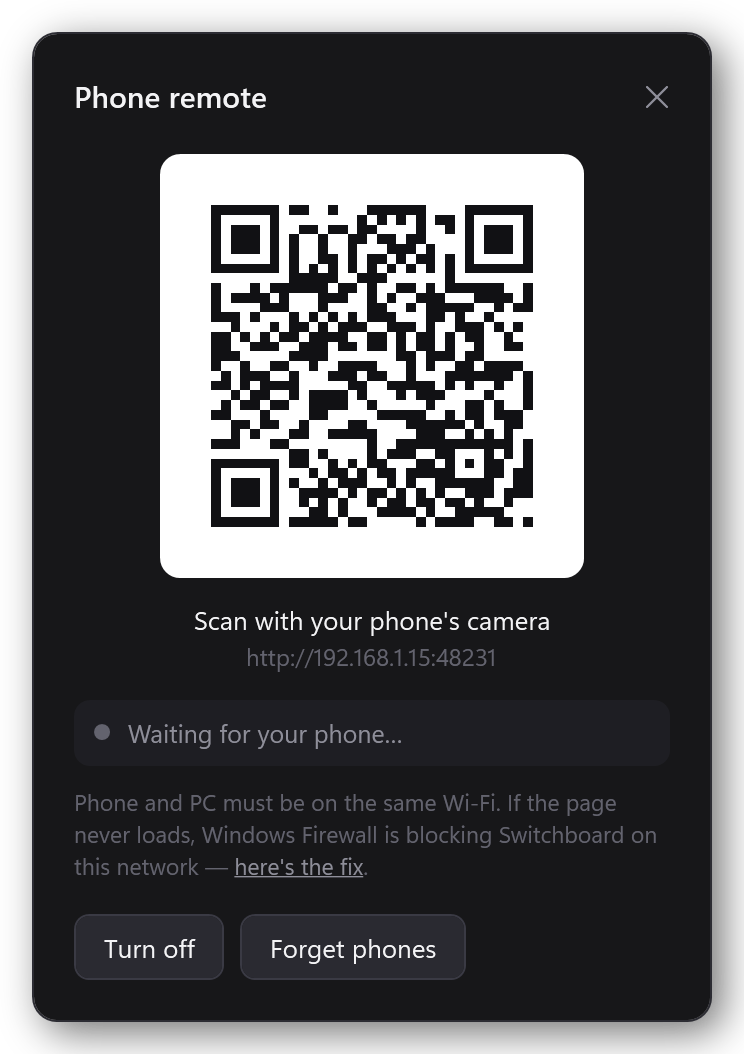
Tray menu → Phone remote… → Turn on, then scan the code with your phone's camera. A page opens in the phone's browser with your devices, your profiles and every app's volume. There's no app to install and no account.
It's for the moments you can't, or don't want to, reach the PC: a full-screen game where Discord is too loud, a PC on the TV across the room, a call where you need the mic off now. The page already knows your setup, so there are no buttons to build first. Plug in a headset and it shows up on the phone too.
What it can do
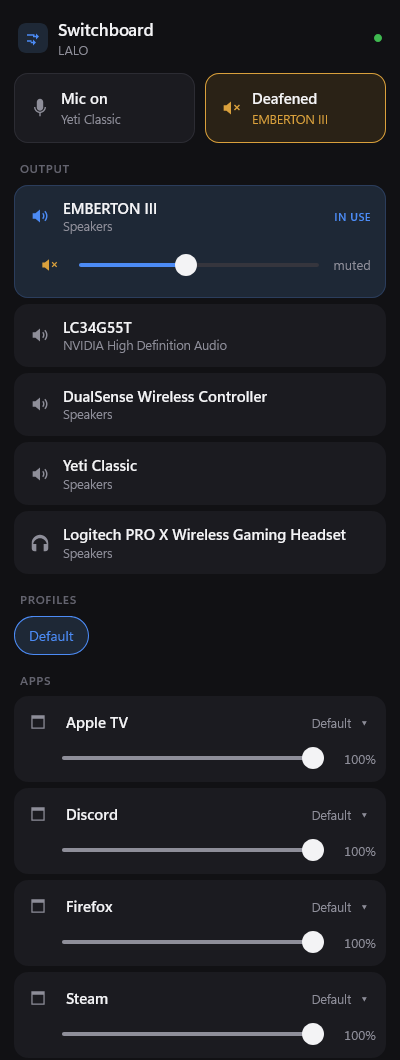
- Mute your mic, or all sound: the two big buttons at the top. They turn amber while muted.
- Switch output or microphone: tap a device. The one in use has a volume slider.
- Apply a profile: tap its name.
- Change one app's volume, mute it, or tap where it plays to send it to another device.
A switch, mute or profile made from the phone shows the usual notice on the PC, marked "from your phone", so whoever is at the PC knows why their sound moved.
Setting it up
- Right-click Switchboard's tray icon and choose Phone remote…
- Click Turn on. Windows asks whether Switchboard may use the network. Allow it on private networks.
- Point your phone's camera at the code and open the link. The phone must be on the same Wi-Fi as the PC.
- Optional: use your browser's Add to Home Screen so the remote opens like an app.
The remote stays on until you turn it off, including after a restart, so a home-screen shortcut keeps working. If your PC gets a new address from the router, scan again.
If the page never loads
You scanned the code, the phone spins, and the window still says Waiting for your phone… Something between them is blocking the connection. In order of likelihood:
- Windows thinks your network is public. Windows 11 often marks a new Wi-Fi network public, and the firewall blocks incoming connections on public networks. If this is your home network, open Settings → Network & internet → Wi-Fi (or Ethernet), choose your network, and set Network profile type to Private.
- Switchboard was blocked when Windows asked. Open Windows Security → Firewall & network protection → Allow an app through firewall, click Change settings, find Switchboard, and tick Private.
- The phone isn't on the same network. Guest Wi-Fi, mobile data, or a VPN on the phone all put it somewhere else. Some routers also keep Wi-Fi devices from reaching each other ("AP isolation" or "client isolation").
Who else can use it
Only a phone that scanned this PC's code, and only from your own network. The code carries a random key, and the remote answers nothing without it. Requests from outside a home network are dropped before they're read, even if a router forwards the port by mistake.
- Forget phones in the window makes a new code. Every phone paired so far has to scan again.
- It's off until you turn it on, and Turn off stops it listening completely.
- Traffic stays on your network and never passes through a server of ours. It isn't encrypted, so don't leave the remote on over a public or shared Wi-Fi, like a hotel's or a café's.