
Guides / Switch your audio device
Switch your audio device
Left-click the tray icon, then click the jack for the device you want. That's it — no dialog, no Apply button.
The flyout is laid out like a patch bay. Everything Windows can play sound through is a jack under Outputs, and the one plugged in, in orange, is what's playing now. The jacks stay in the same places, so your hand learns where they are.
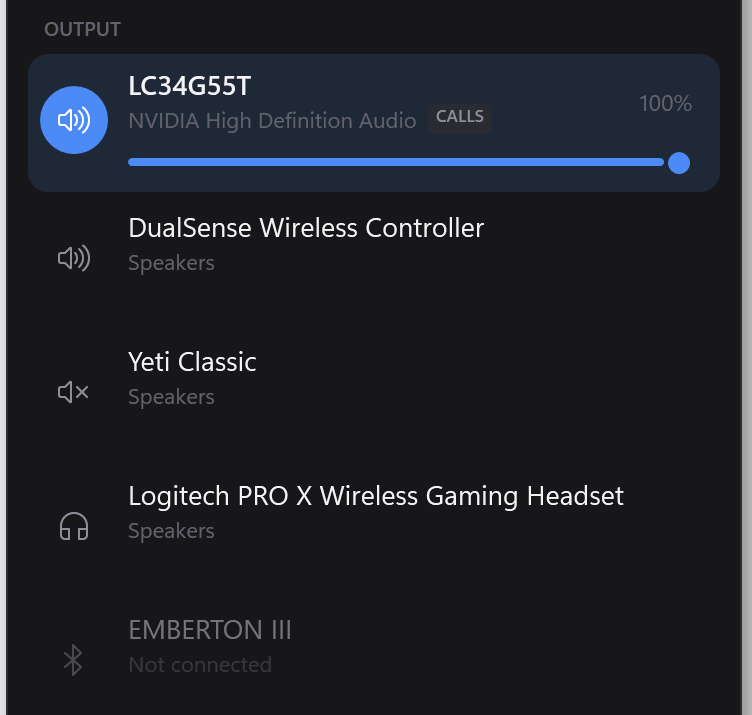
It switches your calls too
This is the part worth knowing, because it's the one thing that makes Windows' own Sound panel frustrating.
Windows doesn't have one default audio device. It has three: Console, Multimedia, and Communications. Voice apps — Discord, Teams, in-game chat — follow Communications. The Sound panel's "Set as default" moves the first two and leaves Communications behind, which is why switching to your headset sometimes moves the game but not your friends' voices.
Switchboard sets all three, every time. A jack showing the CALLS tag is the one your voice apps are using.
Volume and mute
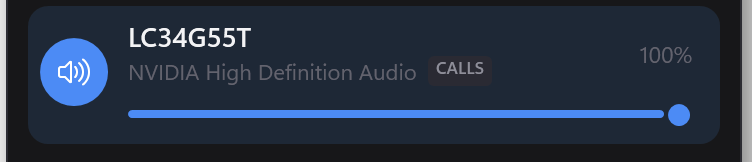
- Drag the bar at the top to set the volume of the device that's playing.
- Click the speaker icon beside it to mute or unmute. On a jack, the small icon in its corner does the same for that device.
- Any other device's volume is one click away: the pencil gives every jack its own bar.
Volumes are remembered by Windows per device, so a headset you set to 30% is still at 30% next time you plug it in.
Microphones
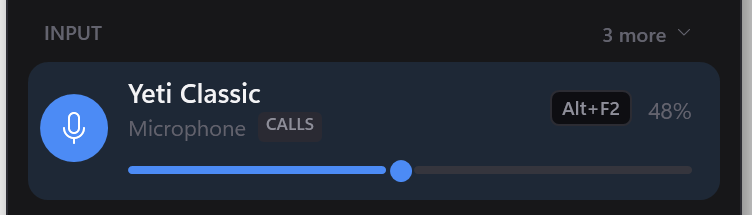
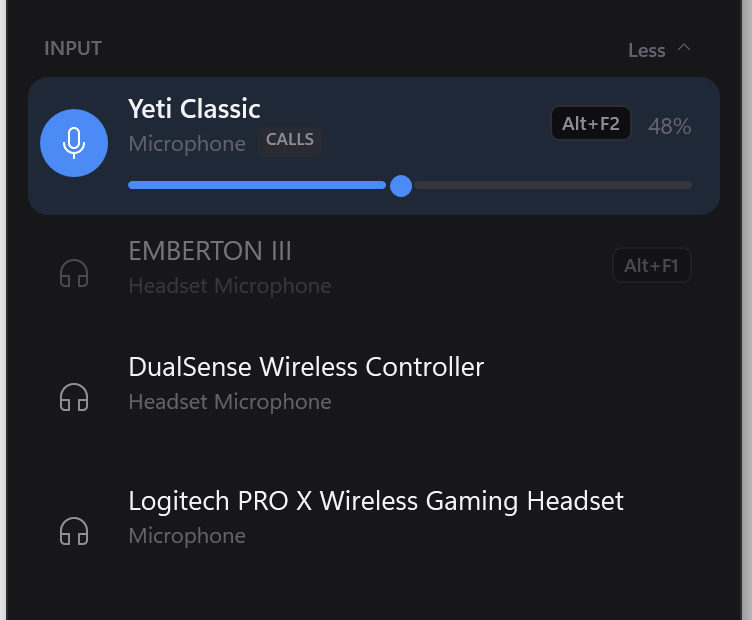
Under the output panel is a strip for the microphone that's live, with its own level and volume, and the rest behind "n more". Most people have several inputs and change them roughly never, so they stay out of the way until you ask.
An app that names a device in its own settings ignores all of this. If Discord is set to "Logitech PRO X" rather than "Default", changing the Windows default won't move it. Set that app back to Default, or use per-app routing instead.
Which "Speakers" is which?
Windows happily names three different outputs "Speakers". Click the pencil, then the ▶ under a jack: Switchboard plays a short chime on that device without switching to it, so whatever you're listening to keeps playing where it is.
Switching automatically
To have your headset take over whenever it's plugged in, star it. To switch when a particular game starts, link a profile to the game.
Faster ways
- Bind a hotkey to a device, and switch without leaving your game.
- Press Ctrl+Alt+S and type the device name.
- Ctrl+Alt+Right cycles to the next output. It ships bound.